
Scheduled Messages
Every message an Atlas Blue campaign has queued but not yet sent appears in the Schedule tab. From there you can see what is about to go out, to whom, and when, and cancel anything that should not send.
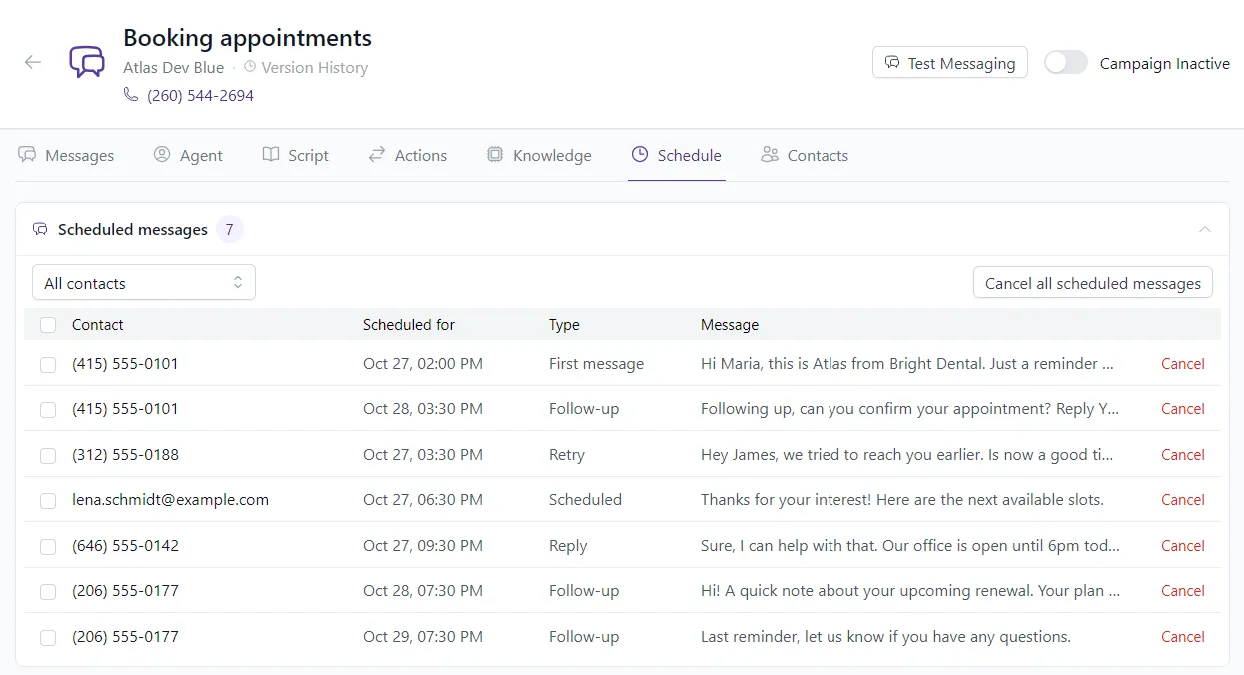
Viewing scheduled messages
Open the campaign and select the Schedule tab. The Scheduled messages panel shows how many messages are pending, with one row per message:
Use the All contacts dropdown to show only the messages queued for a single contact.
Canceling messages
- One message — Click Cancel at the end of its row.
- Several messages — Check the boxes next to the messages you want to remove, then choose Cancel selected.
- One contact — Cancel everything queued for a single contact. You can also do this from the contact’s conversation.
- Everything in the queue — Click Cancel all scheduled messages.
Canceled messages are removed and never sent. The campaign keeps sending to every other contact.
Turning off the automation that scheduled a message does not remove it from the queue — cancel it here instead. Unlinking the phone number from the campaign also empties the queue, but it does so for every contact and stops the campaign from sending.
Using the API
- List scheduled messages — see what is waiting to send
- Cancel scheduled messages — cancel selected messages or all of them
- Cancel a contact’s scheduled messages — cancel everything for one contact
- Cancel a scheduled message — cancel a single message for one contact
When to cancel
- A contact replied or booked through another channel, so a pending follow-up is no longer needed
- A message was queued with the wrong content or for the wrong contact
- You are pausing outreach to a contact who asked not to be messaged
- A large batch is backing up the queue and you want to free sending slots for new contacts